
Show visitors a price that updates as they choose, with no page reload.
This guide builds a monthly retainer calculator for a design studio. The same pattern works for cleaning services, photography packages, consulting, or any tiered offer.
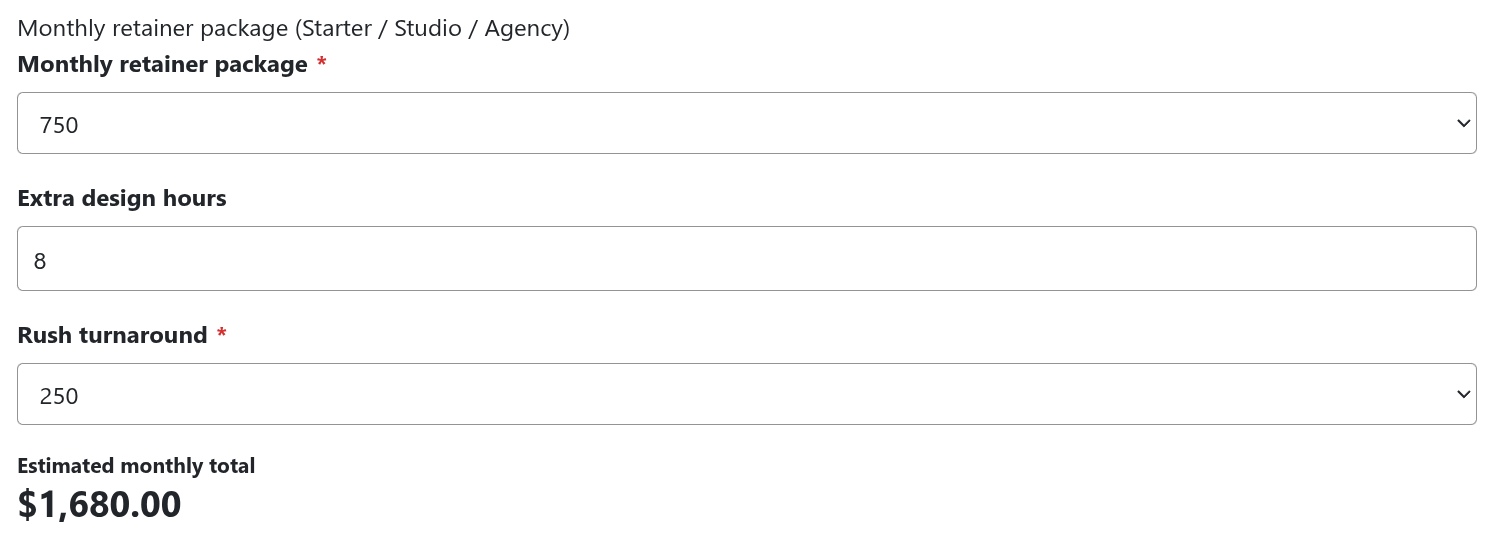
What you're building
| Field | Type | Values |
|---|---|---|
| Monthly retainer package | Select | 750, 1500, 3000 |
| Extra design hours | Number | 0 to 40 |
| Rush turnaround | Select | 0, 250, 500 |
| Estimated monthly total | Calculation | the result |
Formula: package + (extra hours x 85) + rush fee
Pick the 1500 package, add 6 hours, choose the 250 rush option, and the visitor sees $2,260.00 immediately.
Step 1: Add the package selector
Go to Components › NXForms › Forms ›
New, name it Design retainer quote, then drag a
Select field onto the canvas and click it to open the
settings drawer.
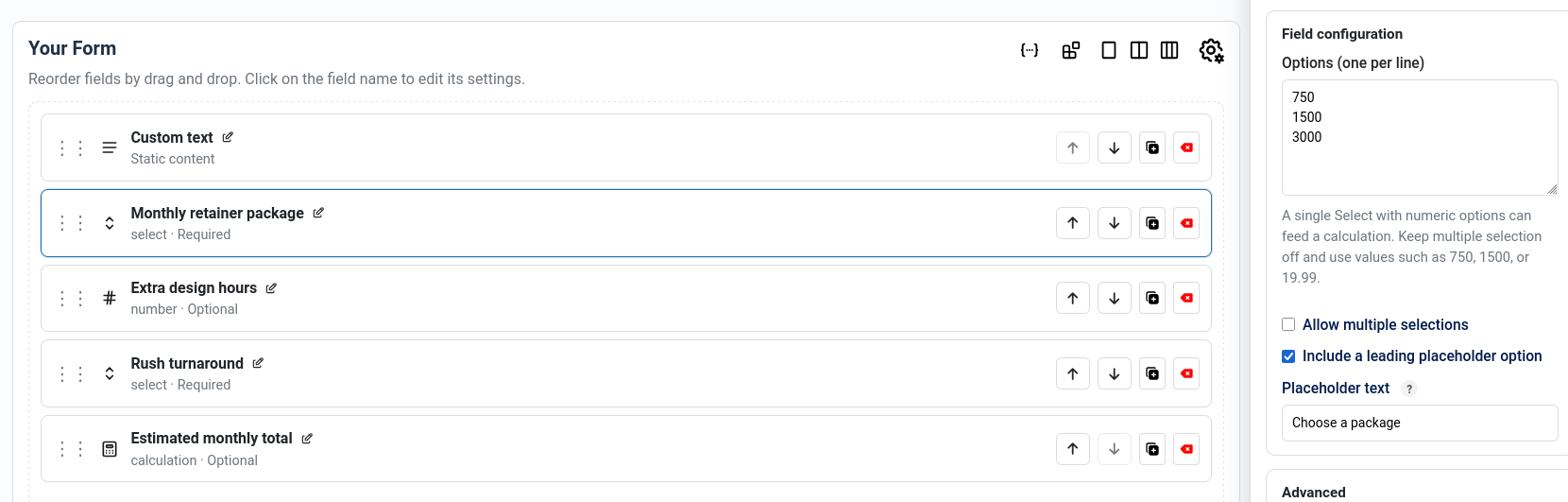
- Field label
- Monthly retainer package
- Field name
package- Options, one per line
750,1500,3000- Allow multiple selections
- Off
- Required
- On
- Include a leading placeholder option
- On
- Placeholder text
Choose a package
The placeholder matters. Without it the browser preselects the first option, so Required does nothing and the form opens showing $750 instead of $0.00.
Options must be plain numbers
A Select uses the same text for what the visitor reads and what gets
submitted, so 750 is both the label and the value.
| Works | Does not work |
|---|---|
750 |
$750 (no currency symbols) |
1500 |
1,500 (no thousands separators) |
19.99 |
750 (Starter) (no labels mixed in) |
-100 |
Contact us (no text options) |
1.2500 |
1.25000 (four decimals maximum) |
One bad option disqualifies the whole field. There's no partial credit.
To give the numbers context, either put the tiers in the label
(Monthly retainer package (Starter / Studio / Agency)) or drag
a Custom text field above the Select and explain them
there. Custom text accepts headings, lists, and tables, so a small
comparison of what each package covers fits well.
Step 2: Add the hours and rush fields
Drag a Number field below the selector:
- Field label
- Extra design hours
- Field name
extra_hours- Minimum and maximum
0and40
Bounds are worth setting. If you later bind this form to a payment, NXP Forms requires every number field feeding the total to have both.
Then a second Select:
- Field label
- Rush turnaround
- Field name
rush- Options
0,250,500- Allow multiple selections
- Off
Same rules: plain numbers, single selection. Fold the explanation into the label or your Custom text block.
Step 3: Add the calculation
Drag a Calculation field onto the canvas.
- Field label
- Estimated monthly total
- Field name
monthly_total- Decimal places
2- Number format
- US (1,234.56)
- Prefix
$
In the Formula box, build this:
{ref:package} + {ref:extra_hours} * 85 + {ref:rush}
Don't type the tokens by hand. Click the chips in the
Insert field: row, or type @ to search. Only
fields that can feed a calculation appear there, so if your package Select
is missing it isn't passing the numeric test.
The 85 is your hourly rate. Edit that one number when your rate
changes.
Two panels below confirm your work. Resolved shows the formula with real labels, so read it back as a sentence. Preview shows a sample result using the first option of each Select and 10 for number fields:
750 + 10 * 85 + 0 = $1,600.00A preview of $0.00 means a reference isn't resolving.
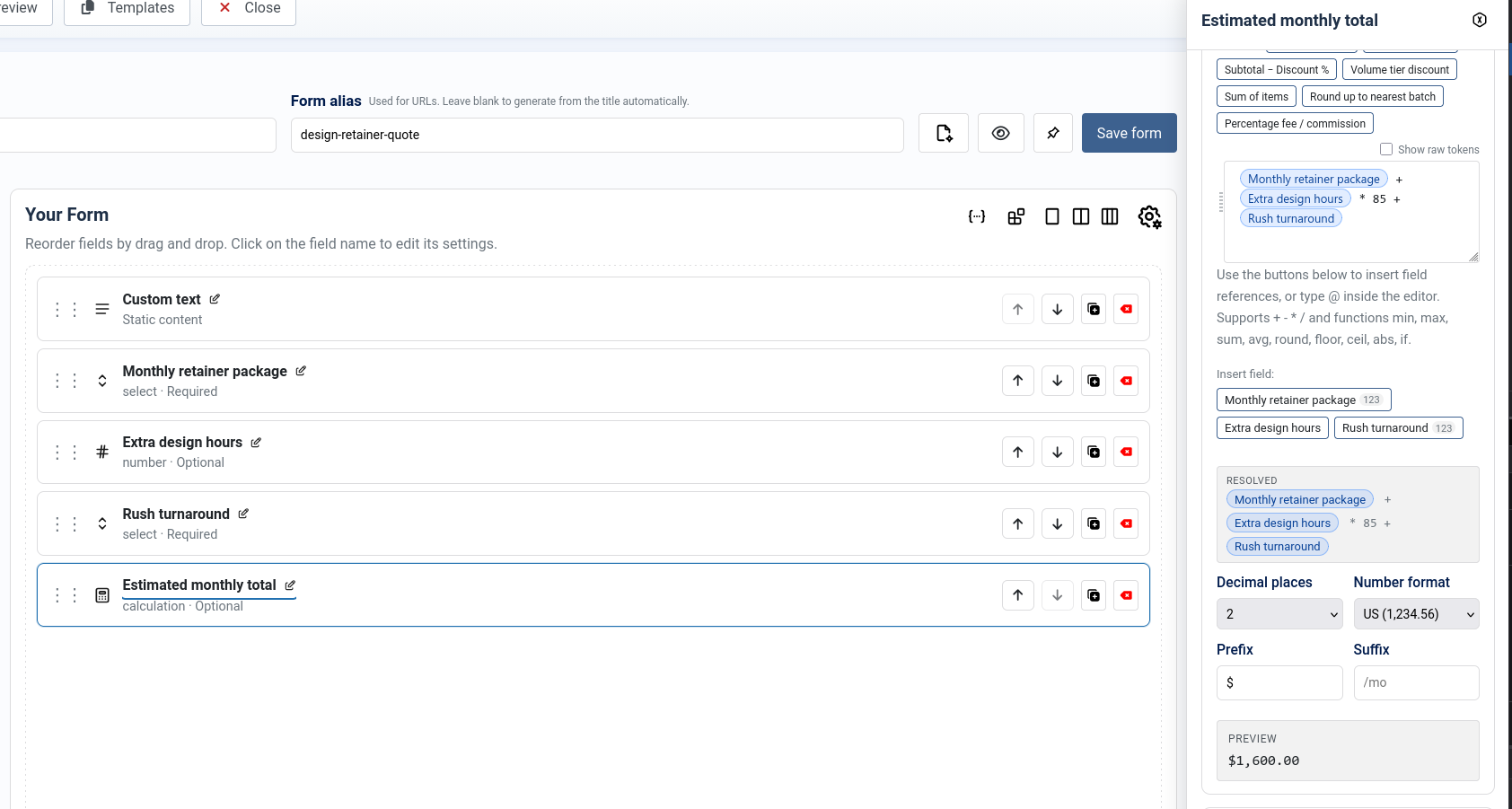
Click Save. If the save is refused, that's deliberate: a form with a broken formula would quote real visitors the wrong price.
Step 4: Publish it
Pick one:
A dedicated page. Go to Menus › [your menu] › Add New Menu Item, set Menu Item Type to NXForms › Form, and choose your form. Turn off the sidebar under Page Display so the form gets the full width.
Inside an article. Add where
you want it, replacing 5 with your form's ID from the Forms
list. Put your explanation above it.
In a module. Go to Content › Site Modules › New, choose NXForms, select your form, and set a position. Keep it single-column in a narrow sidebar.
Step 5: Test it
Open the page in a private window and check that the total starts at
$0.00, updates when you change each field, and shows two
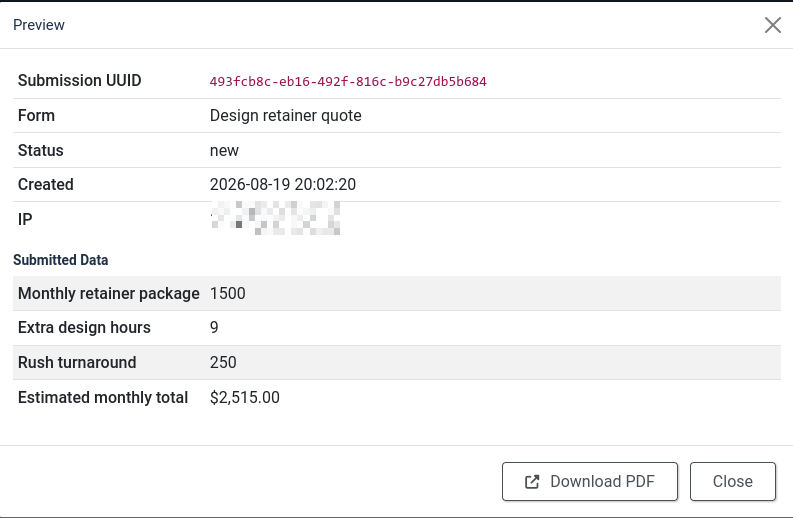
decimals with the $ prefix. Then submit and confirm the stored
total under Components › NXForms ›
Submissions.
That last check matters. The browser number is just a convenience. The server recalculates the total at submit from your saved formula, so nobody can edit the page and talk you into a cheaper quote.
Variations
Percentage surcharge instead of a flat fee. Change the rush
options to 0, 15, 25 and use:
({ref:package} + {ref:extra_hours} * 85) * (1 + {ref:rush} / 100)The parentheses matter. Without the first pair the percentage applies only to the extra hours.
Show a subtotal. Add a second Calculation named
subtotal with
{ref:package} + {ref:extra_hours} * 85, then make your total
{ref:subtotal} + {ref:rush}. Calculations can reference each
other as long as you don't create a loop.
Take payment. In Form Settings ›
Payments, enable payments, set the amount mode to
Calculation field, and bind it to
monthly_total.
Troubleshooting
- My Select is missing from the Insert field list.
-
Check three things in order: multiple selections off, at least one
option, every option a plain number. One stray
Call usdisqualifies the field. - The save is refused with a calculation error.
- The message names the field. Usually a referenced Select became multi-select, an option was edited to text, or a referenced field was deleted.
- The total is $0.00 on the frontend but fine in the builder.
- A field hidden by conditional logic counts as zero on purpose, so the visible total matches what the server will calculate.
- The total does not update.
- Hard refresh with Ctrl+Shift+R, or Cmd+Shift+R on a Mac. Almost always a cached script.
More on calculations
Every operator and function, including if, min,
max, round, and volume tier discounts:
Calculations.