
Sell an ebook, a preset pack, or a software license and have the buyer get their file the moment payment clears. No manual emails, and no public URL that gets passed around a forum a week later.
Digital products are part of the free NXCart feature set.
What you're building
| Piece | Setting |
|---|---|
| Where files live | Outside your web root, or a protected folder inside it |
| Who can download | Only buyers whose order is Paid or Fulfilled |
| How many times | 5 by default |
| For how long | 30 days by default |
Each buyer gets their own one-off link. It isn't the file's real location, and it doesn't work for anyone else.
Step 1: Set your download defaults
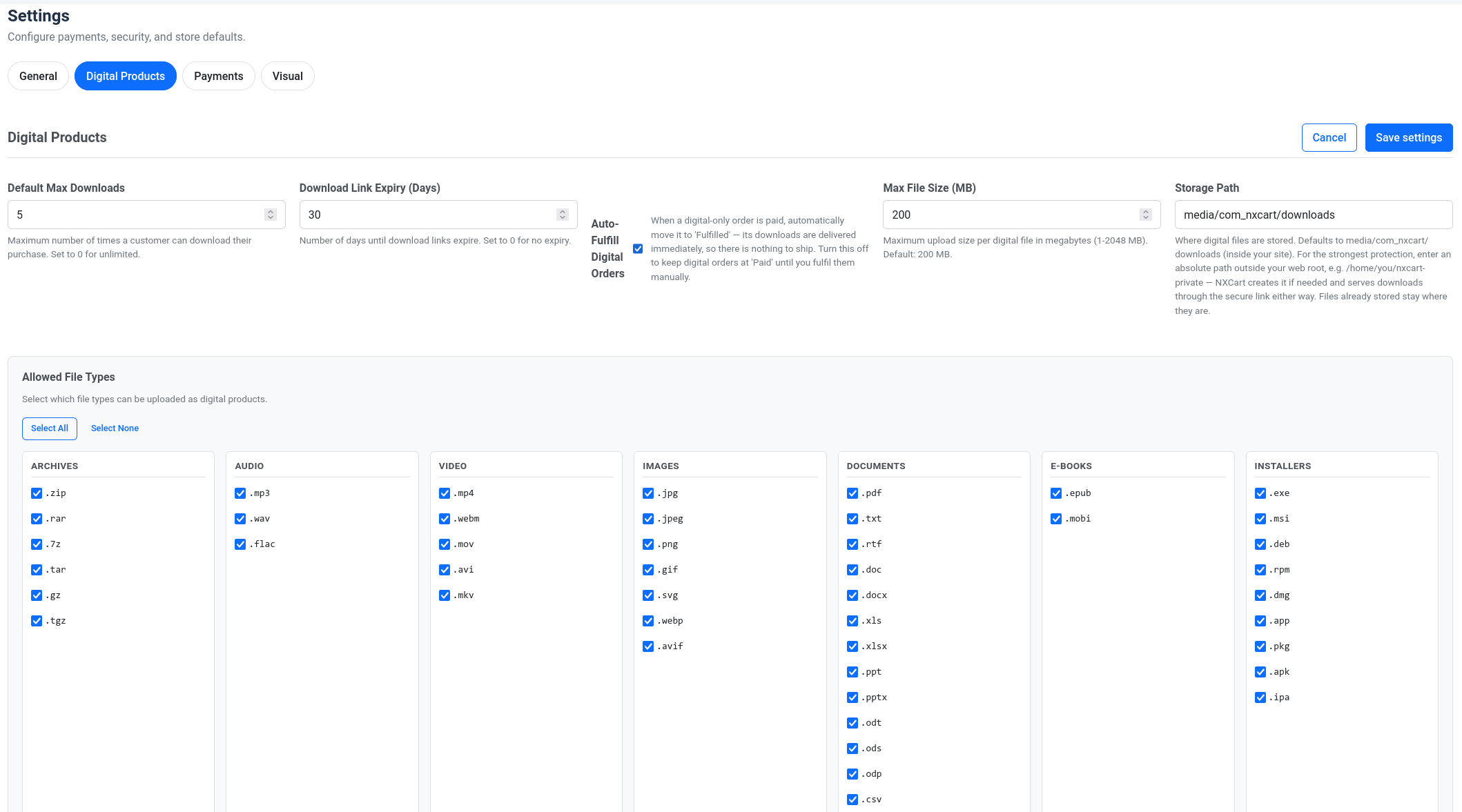
Go to NXCart › Settings and open the Digital tab.
| Setting | Default | What it does |
|---|---|---|
| Default Max Downloads | 5 |
Times a customer can download. 0 means unlimited. |
| Download Link Expiry (Days) | 30 |
Days before the link dies. 0 means never. |
| Max File Size (MB) | 200 |
Per-file upload cap, up to 2048. |
| Allowed File Types | Which extensions may be uploaded. | |
| Auto-Fulfill Digital Orders | On | Moves paid digital-only orders straight to Fulfilled. |
Five downloads over thirty days suits most products. It covers a failed download, a second device, and a re-download a few weeks later, without becoming a permanent free file host.
Be generous rather than strict here. A customer who hits the limit and emails you costs more than the bandwidth ever would.
Step 2: Decide where files are stored
Storage Path is the most important setting on this page, and the default is not the safest option.
By default files go to media/com_nxcart/downloads inside your
site. NXCart writes an .htaccess file there that denies direct
access, plus an index.html to stop directory listing.
On Apache, that works. Direct requests to the file are refused, and the only way in is a valid download link.
On nginx, .htaccess does nothing. NXCart also
writes an nginx.conf in that folder, but nginx will not read it
unless you include it from your server block:
include /path/to/media/com_nxcart/downloads/nginx.conf;If you run nginx and skip that step, your paid files are reachable by anyone who guesses the URL.
The stronger option, on any server: put Storage Path
somewhere the web server cannot serve at all. Enter an absolute path such as
/home/you/nxcart-private. NXCart creates it if needed and
serves downloads through the secure link exactly as before. A file the web
server cannot reach cannot leak through a misconfiguration.
Files already stored stay where they are when you change this, so set it before you upload.
Step 3: Create the product
Go to NXCart › Products and create a product as usual. In the editor, set Product Type to Digital Product.
Digital products skip shipping entirely. If you also switch on Minimal fields for digital-only checkout in Settings › General, carts with only digital items ask for name and country only. Country is kept because tax needs it. Dropping the street and postcode fields from a checkout that ships nothing removes a real source of abandonment.
Save the product before continuing. Files attach to the saved product record, so the upload area tells you to save first if you haven't.
Step 4: Upload the files
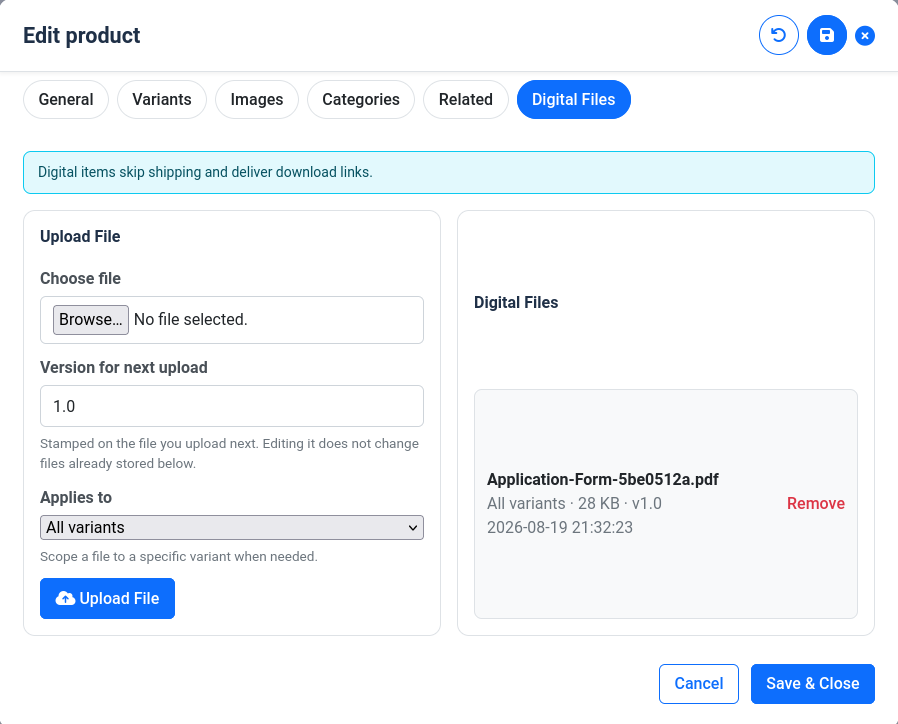
Reopen the product and find the Digital Files section.
Set Version for next upload if you're selling something versioned, such as software or a template. It's stamped on the next file you upload and shown to the customer. Changing it doesn't alter files already stored.
Click Upload File and pick your file.
If your product has variants, Applies to scopes a file to one variant. Leave it on All variants when every buyer gets the same file. Use it when, say, a license tier ships a different package.
A few file types are blocked outright and cannot be uploaded whatever your
settings say: php, phtml, phar,
cgi, htaccess, and similar executable or
server-config types. Uploaded files are also stored under a random generated
name with a .bin extension, so nothing on disk is guessable or
runnable.
Step 5: Buy your own product
Test it properly before you announce anything.
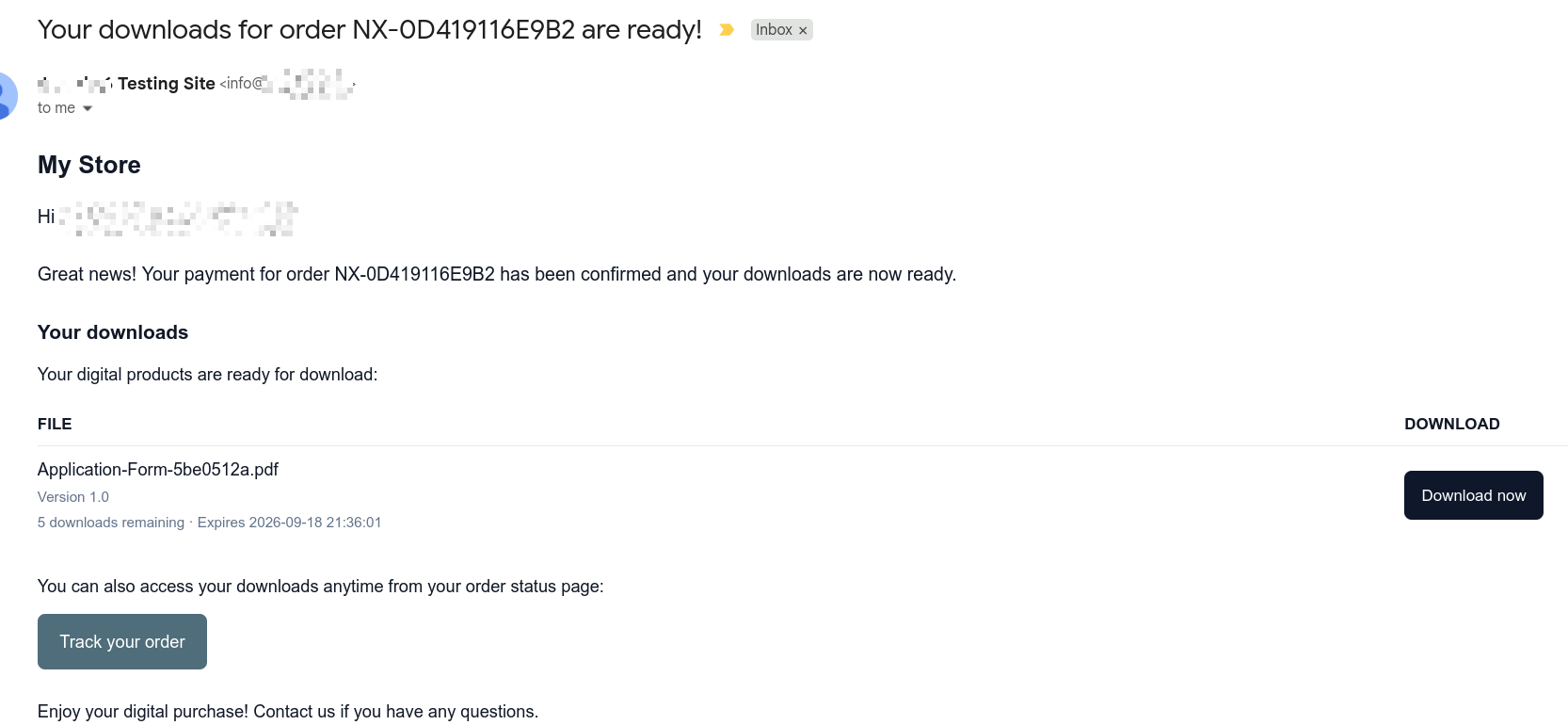
Place a real order through your storefront and pay it. When payment clears, the buyer gets an email titled Your downloads listing each file with its link, version, and expiry. The same links are on the order status page, so a deleted email is not a lost purchase.
Click one and confirm the file downloads with its proper name. Then check NXCart › Orders and confirm the order moved to Fulfilled, assuming you left auto-fulfill on.
How the links stay secure
Worth knowing, because it's what you're relying on.
Each link carries a 64-character random token tied to one order item and one file. It isn't a path, so it reveals nothing about where the file lives.
Every request checks four things: the token exists, the link hasn't expired, the download count is below the limit, and the order is Paid or Fulfilled. An unpaid or refunded order stops working immediately.
The download counter is claimed atomically before a single byte is sent, so someone firing ten parallel requests at a link with one download left gets one file, not ten.
The file is streamed by Joomla, never linked directly. Your real storage path is never exposed to the browser.
Variations
Sell software with versions. Set Version for next upload before each upload. Buyers see the version they received, which makes support conversations much shorter.
Give unlimited access. Set Default Max
Downloads to 0, or Download Link
Expiry to 0, or both. Reasonable for a lifetime
license, less so for a large media file.
Mix physical and digital in one order. Perfectly fine. The digital items deliver immediately while the physical ones follow your normal fulfillment. Auto-fulfill only applies to orders that are entirely digital.
Hold orders for manual review. Turn off Auto-Fulfill Digital Orders to keep paid digital orders at Paid until you fulfill them by hand. The download links still work, since Paid is enough.
Troubleshooting
- The customer says the link is invalid or expired.
- All four checks return the same message on purpose, so an attacker learns nothing. Open the order and check the state, the expiry date, and the download count to see which one it was.
- Downloads stopped after a refund.
- Expected. Only Paid and Fulfilled orders allow downloads.
- Files download but are empty or corrupt.
-
Check that Max File Size (MB) is above your file's size,
and that your PHP
upload_max_filesizeandpost_max_sizeallow it too. The upload is the weak link, not the download. - I cannot upload my file type.
- Add the extension under Allowed File Types, or to Custom Extensions if it's unusual. Executable and server-config types stay blocked no matter what.
- The upload area says to save first.
- Files attach to a saved product record. Save, reopen the editor, then upload.
- Anyone can reach my files directly.
-
You're almost certainly on nginx with the
.htaccessdoing nothing. Include the generatednginx.conf, or move Storage Path to an absolute path outside your web root.
Full documentation: NXCart.