
Both platforms export their products as CSV. NXCart reads those files directly, recognizes which platform they came from, and builds your catalog from them.
A few hundred products takes minutes instead of a week of copy and paste.
What comes across, and what does not
Read this before you start. It sets expectations correctly and saves a disappointed afternoon.
| Imported | Not imported |
|---|---|
| Products and descriptions | Past orders |
| Variants, options, SKUs | Customer accounts |
| Prices and sale prices | Reviews and ratings |
| Stock levels | Coupons and discounts |
| Categories | Page content and blog posts |
| Barcodes and EANs | Digital files themselves |
| Weights |
This is a catalog migration, not a whole-store clone. Orders and customers stay on the old platform, which is normally what you want anyway.
Supported sources: WooCommerce, Shopify, VirtueMart, HikaShop, and NXCart's own Native format.
Step 1: Export from your old store
WooCommerce. Go to Products › All Products › Export, leave the defaults to export all columns, and download the CSV.
Shopify. Go to Products, click Export, choose all products and the plain CSV format.
Don't edit the file afterwards. NXCart identifies the platform from the column headers, and renaming or removing them breaks detection.
Keep the file under 10MB. If your export is larger, split it into several CSVs and import them one after another.
Step 2: Back up what you already have
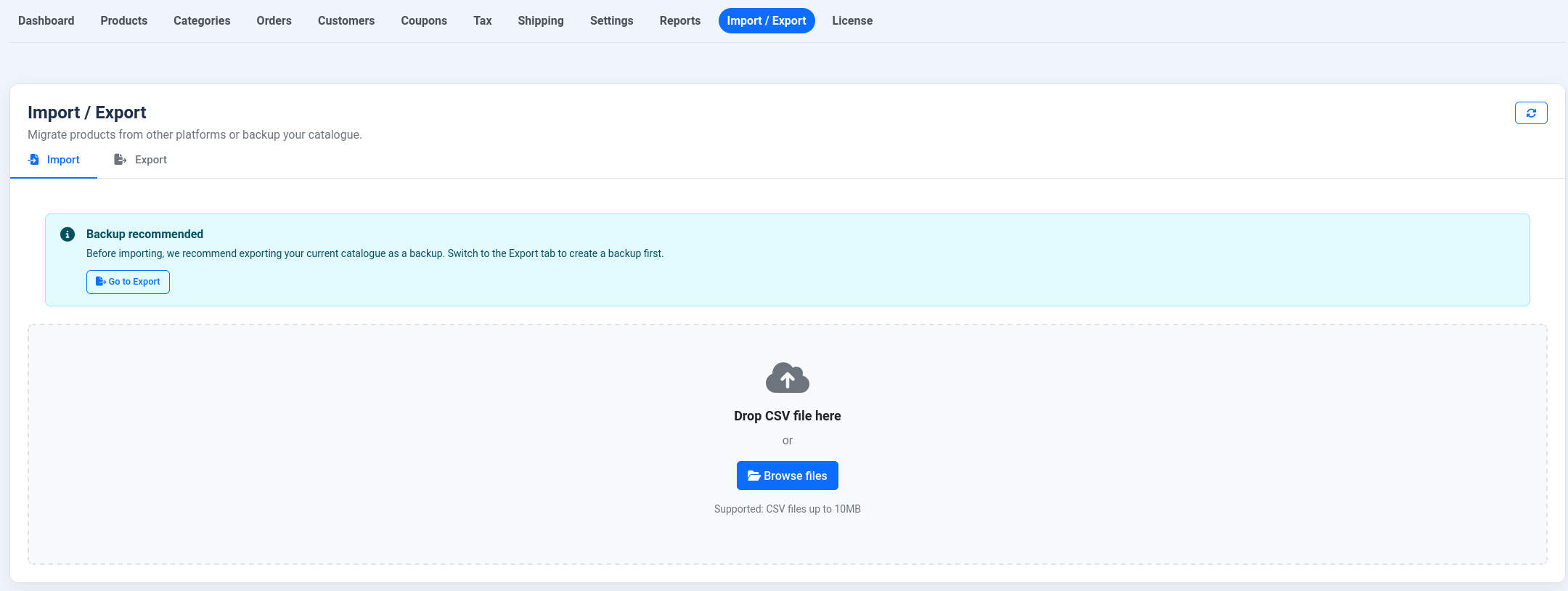
If your NXCart store already has products, export them first. Go to NXCart › Import / Export, open the Export tab, choose the Native format, and download the file.
Native format is the round trip: it exports everything NXCart knows and imports back cleanly. If an import goes wrong, that file is your way back.
The import screen reminds you of this too. Take the reminder seriously the first time.
Step 3: Upload the CSV
Go to NXCart › Import / Export and stay on the Import tab. Drop your CSV onto the upload area, or click Browse files.
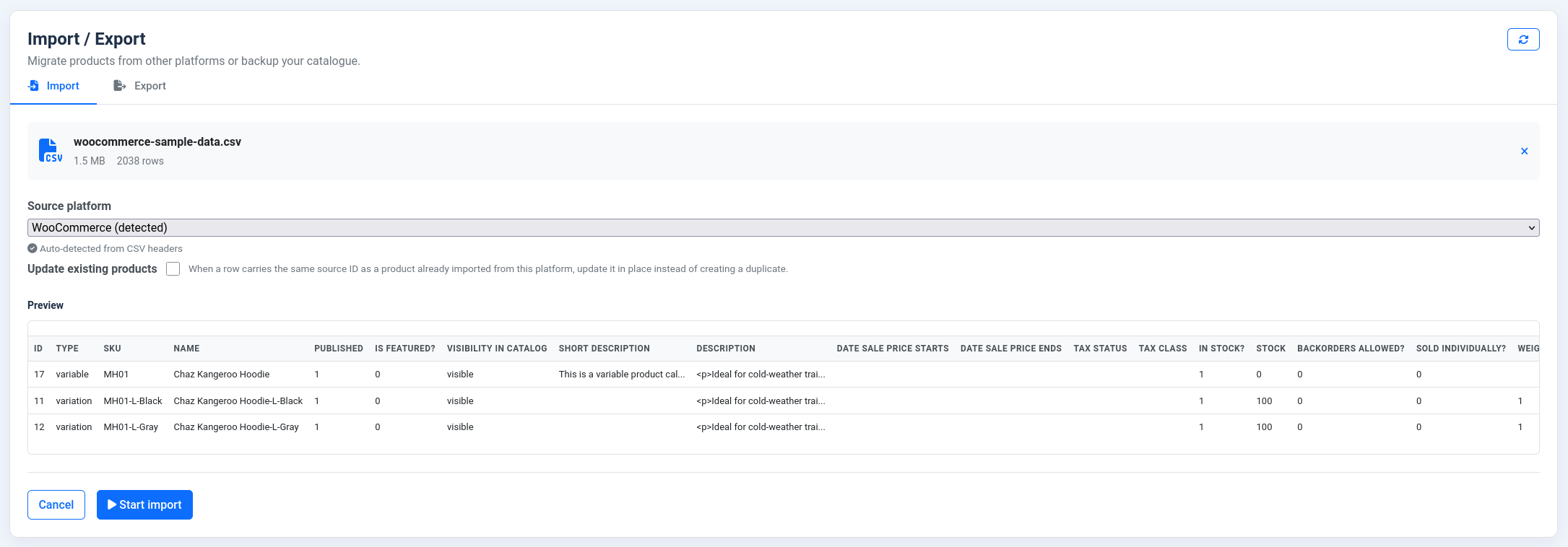
Source platform should fill in by itself, with Auto-detected from CSV headers shown underneath. Detection works by looking for a combination of column names unique to each platform, so a genuine WooCommerce or Shopify export is recognized without you doing anything.
If it doesn't detect, pick the platform manually. If the right platform is picked and the import still fails, compare your file against the built-in examples via the Sample files link on the same screen.
Step 4: Check the preview
Once the file is read you get a Preview with the row count and the first rows mapped into NXCart's fields.
Look at three things:
- Does the row count roughly match your product count? Shopify writes one row per variant, so a shop with 50 products and 3 sizes each produces about 150 rows. That's correct, not a bug.
- Are titles and prices in the right columns?
-
Are categories showing as a path, such as
Clothing > Shirts?
If the preview looks wrong, the platform is probably misidentified. Change it and look again.
Step 5: Decide how to handle repeats
Update existing products controls what happens when a row matches something already imported from that platform.
| Setting | Result |
|---|---|
| Off | Every row creates a new product |
| On | Matching rows update the existing product in place |
Leave it off for a first import into an empty store.
Turn it on when you re-import a corrected file. NXCart remembers the source ID each product came from, so a second pass updates rather than duplicating. That makes the whole thing safely repeatable: fix the CSV, import again, no mess.
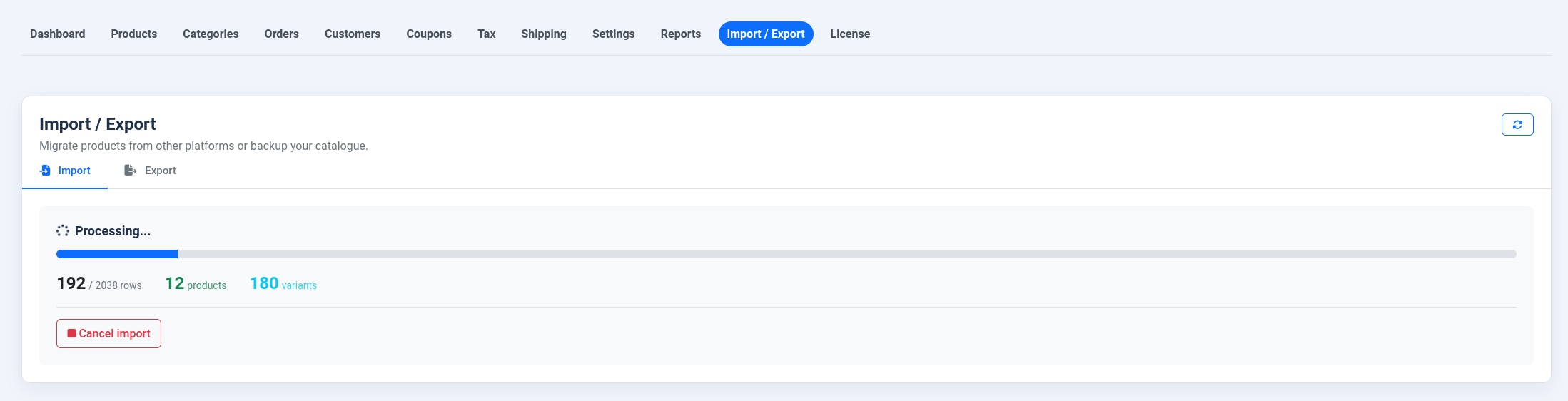
Click Start import. Progress runs live and reports imported, skipped, and errors. If anything failed, View errors lists the rows.
Step 6: Deal with the images
This is the part people miss.
Product images are stored as the URLs from your export, which still point at your old store. Your Joomla catalog will look complete, but every image is being served by Shopify or your old WooCommerce host.
Don't cancel the old store's hosting yet. The day it goes dark, every product image on your Joomla site breaks.
Two ways to finish the job properly:
Move the images yourself. Download them from the old store, upload them through Joomla's media manager, and update the product image paths. Tedious, but it makes you independent.
Keep the old host alive briefly. Leave it running while you migrate images in batches, then shut it down once nothing points there.
Whichever you pick, treat images as a separate task after the import, not part of it.
What to check afterward
Spend ten minutes on this before announcing anything:
- Open a few products and confirm variants, prices, and stock look right.
- Check the categories tree for duplicates created by slightly different spellings.
- Confirm sale prices carried over. WooCommerce sale dates come across too; Shopify has no sale dates, so its Compare At Price becomes the regular price with Price as the sale price.
- Check any product that was digital on the old platform. See below.
Digital products need one extra step. WooCommerce downloadable and virtual products are recognized and arrive marked as digital in NXCart. The files themselves do not transfer, so upload them under Digital Files on each product. Shopify has no digital flag at all in its export, so those products arrive as physical and you switch Product Type by hand.
Variations
Import in batches. Split a large export by category and import each file separately. Easier to verify, and a failure costs less.
Move between two NXCart stores. Export as Native from one and import it into the other. Nothing is lost in translation.
Migrate from VirtueMart or HikaShop. Same flow, same screen. Export from the old component and pick it as the source platform.
Troubleshooting
- The platform is not detected.
- The headers were changed, or the file was re-saved by a spreadsheet in a different format. Re-export from the source and upload it untouched.
- Products imported twice.
- Update existing products was off during a re-import. Delete the duplicates and re-run with it on.
- Some rows were skipped.
- Rows without a title or price are skipped rather than creating broken products. View errors names them.
- Variants became separate products.
-
Shopify groups variants by the
Handlecolumn, and WooCommerce byParent. If those columns are missing from your export, the grouping is lost. Export all columns. - Images are broken.
- They point at the old store, which is now offline. See Step 6.
- The upload is rejected.
- The limit is 10MB. Split the file.
Full documentation: NXCart.