
Under GDPR, tracking scripts must not run before a visitor agrees. Adding a cookie banner isn't enough on its own. If Analytics loads while the banner is still on screen, you've already tracked someone who never agreed.
NexusConsent blocks those scripts on the server, before the page reaches the browser, and releases them only for the categories a visitor accepts.
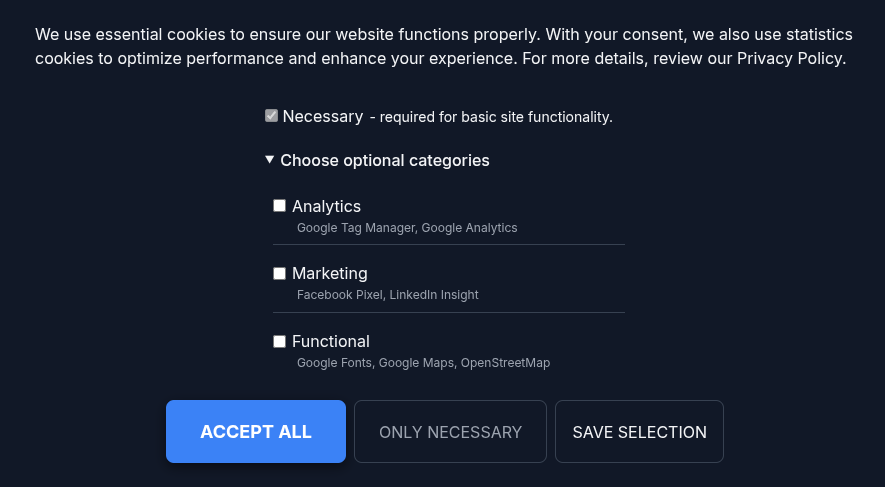
What you're building
| Service | Category | Loads when |
|---|---|---|
| Google Tag Manager | Analytics | The visitor accepts Analytics |
| Google Analytics | Analytics | The visitor accepts Analytics |
| Meta Pixel | Marketing | The visitor accepts Marketing |
Before consent, none of these appear in the page at all.
Step 1: Enable the plugin
Install NexusConsent through Extensions › Manage ›
Install, then go to System › Plugins,
search for NexusConsent, and open System -
NexusConsent. Set Status to
Enabled.
The plugin has five tabs: Basic, Appearance, Texts, Patterns, and Advanced. Almost everything here happens in Patterns.
Step 2: Block the analytics scripts
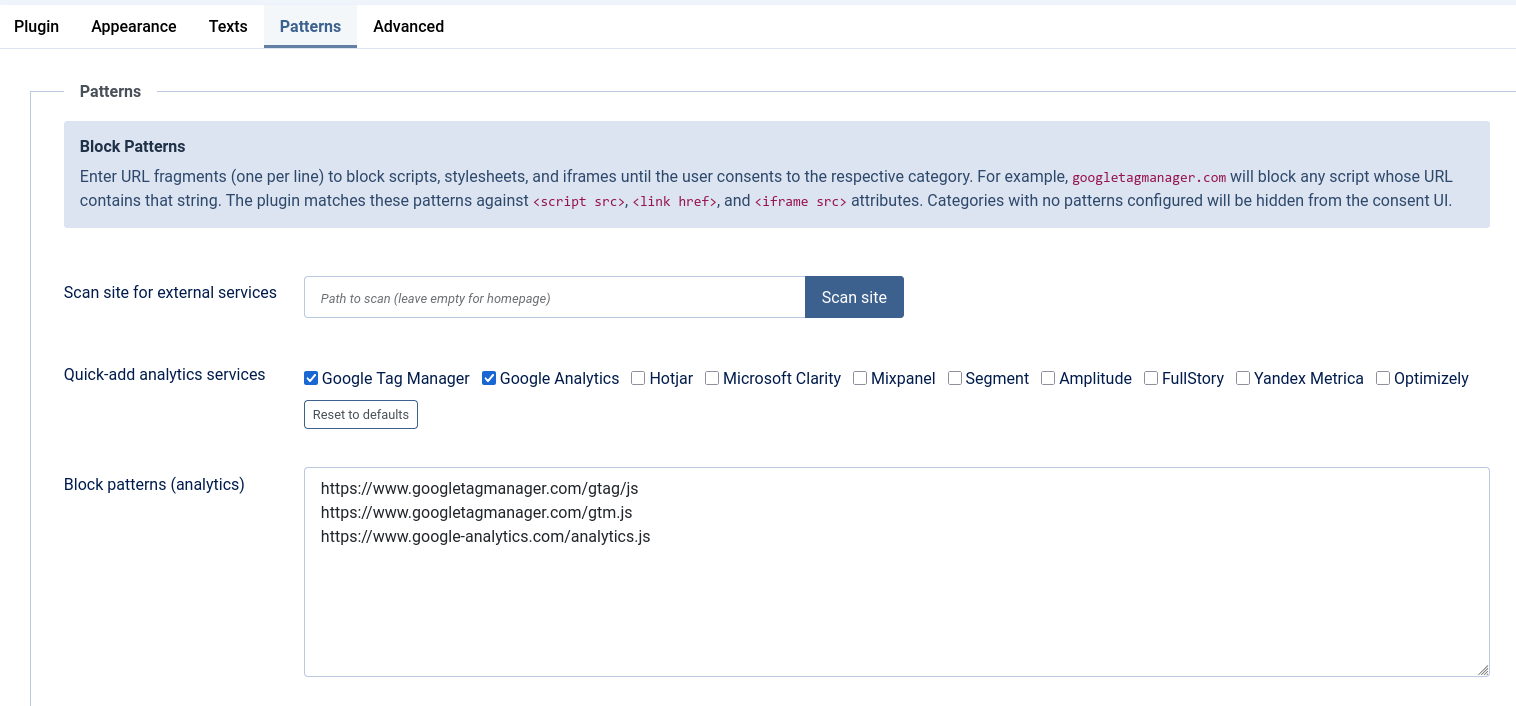
Open the Patterns tab. Under Quick-add analytics services, tick:
- Google Tag Manager
- Google Analytics
The checkboxes write the matching URLs into the Block patterns (analytics) box below them, so you can see exactly what was added.
Tick both even if you only use one. Most sites load Analytics through Tag Manager these days, and if you block only the Analytics URL, Tag Manager loads and quietly starts it anyway.
Step 3: Block Meta Pixel
Further down the same tab, under Quick-add marketing
services, tick Meta Pixel. That adds
https://connect.facebook.net/ to Block patterns
(marketing/ads).
Keeping Analytics and Marketing separate is the point of categories. A visitor can allow you to measure traffic while still refusing advertising trackers, and that choice is respected per category.
Click Save.
Step 4: Decide how firmly to ask
On the Basic tab, Require decision (modal) controls what visitors see on their first visit.
| Setting | Visitor sees |
|---|---|
| No | A banner. They can keep browsing while it is open. |
| Yes | A centered modal with an overlay, until they choose. |
Either way, nothing in your blocked categories runs until a choice is made. The modal is firmer and gets you a decision sooner. The banner is less intrusive. Both are defensible, so pick what suits your audience.
One setting on this tab is easy to miss. Config version is the number stored alongside each visitor's consent. When you add a service to a category later, increase this number. Visitors who already chose will be asked again, rather than having a new tracker slipped under their old answer.
Step 5: Confirm it is actually blocked
Don't trust the banner as proof. Check the page itself.
Open your site in a private window, don't touch the banner, then view the
page source with Ctrl+U. Search for data-consent.
Blocked scripts look like this:
<script type="text/plain" data-consent="analytics" data-src="https://www.googletagmanager.com/gtag/js?id=G-XXXX"></script>
type="text/plain" is what makes it inert. Browsers won't
execute a script with that type, and the real URL is parked in
data-src until consent arrives.
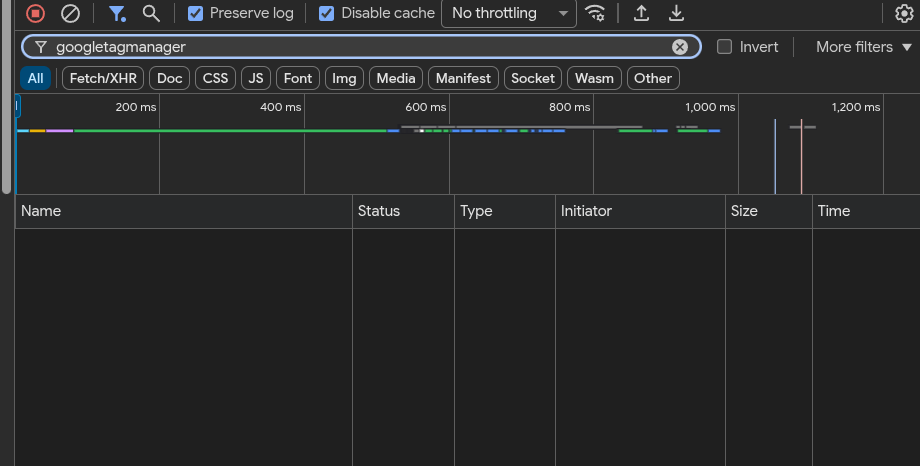
Now open your browser's developer tools, go to the Network
tab, and reload with the banner untouched. You should see no requests to
google-analytics.com, googletagmanager.com, or
connect.facebook.net.
Step 6: Confirm consent releases them
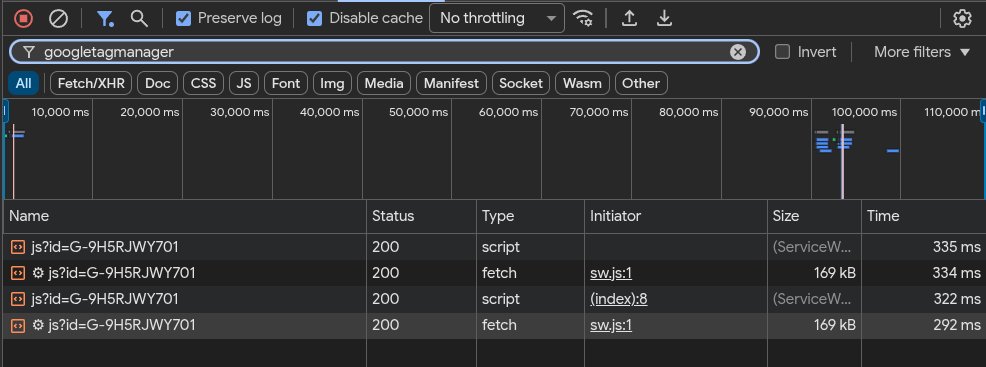
Click Accept and watch the Network tab. The tracking requests should now appear.
If your site uses Google Consent Mode, NexusConsent handles it for you. Both
analytics_storage and ad_storage start as
denied, then update the moment a visitor chooses. Accepting
Analytics grants analytics_storage; accepting Marketing grants
ad_storage.
Last, click the floating cookie button, change your mind, and save. Revoking clears the optional cookies, sets Consent Mode back to denied, and reloads the page so nothing survives from the previous state.
Variations
Find what you're actually loading. The Scan site for external services button at the top of the Patterns tab fetches your homepage and lists every external script, stylesheet, and iframe it finds, with a suggested category for each. Select the ones you want and add them in one click. Useful when a template or a third-party extension is loading something you didn't know about.
Block something with no preset. Type the URL fragment into
the category textarea, one per line. Matching is a plain substring test, so
googletagmanager.com blocks any script whose URL contains it.
Keep fragments specific enough not to catch your own assets.
Embedded maps and videos. Google Maps, YouTube, and Vimeo are under Functional, not Analytics. They set cookies too, so add them if you embed them.
Troubleshooting
- The banner doesn't appear.
- Confirm the plugin is Enabled, then check that at least one category has patterns. Categories with an empty pattern list are hidden, and if every optional category is empty, visitors are told only essential cookies are used, which is correct behavior for a site with nothing to block.
- Analytics still loads before I accept.
-
View the source and search for your tracking domain. If it appears in a
normal
<script src="/...">rather than atype="text/plain"block, your pattern doesn't match that URL. Copy the exact domain out of the page source and add it as a pattern. - Nothing changed after I edited the patterns.
- Clear the Joomla cache under System › Clear Cache, and check in a private window. Page caching serves the version generated before your change.
- My tracking is inline, not a file.
-
Inline snippets containing
gtag(,dataLayer, orfbq(are recognized and blocked with their category, so a pasted Analytics or Pixel snippet is handled the same way as a linked file. - Returning visitors were never asked about a service I just added.
- Increase Config version on the Basic tab. Their stored consent predates the change.
Full documentation: NexusConsent.