
Accept guest articles, community tips, or event listings through a form, and review each one before it goes live.
Everything here works in the free version of Formatrica.
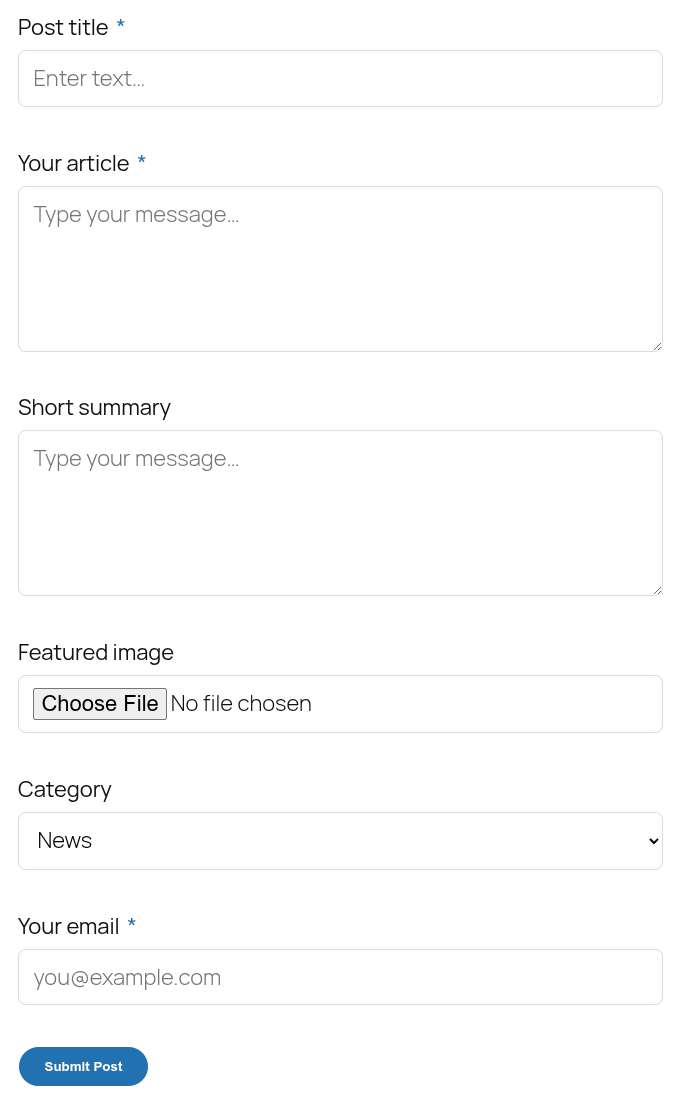
What you're building
A form that creates a real WordPress post from each submission:
| Form field | Type | Becomes |
|---|---|---|
| Post title | Text Field | The post title |
| Your article | Textarea | The post content |
| Short summary | Textarea | The excerpt |
| Featured image | File Upload | The featured image |
| Category | Select | A category assignment |
| Your email | Email Field | Stored with the submission |
Submissions arrive as Pending review, so nothing reaches your site until you approve it.
Step 1: Build the form
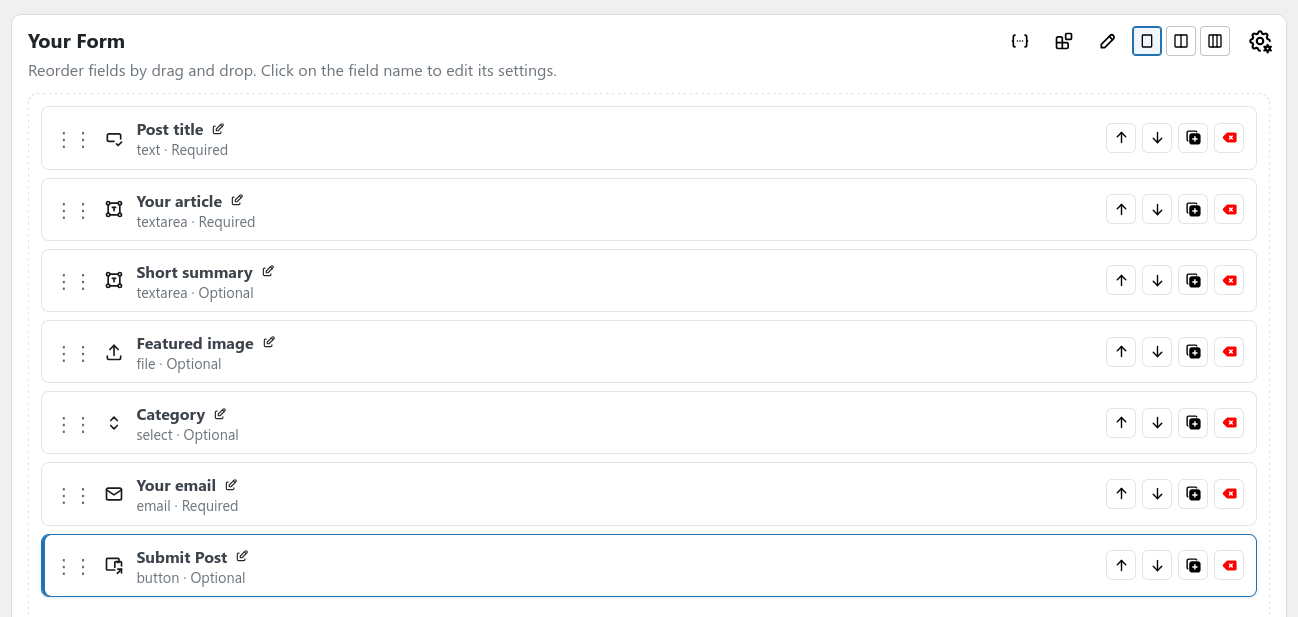
Go to Formatrica › Create Form and drag these fields onto the canvas. For each one, click it and set the label and field name in the drawer.
| Field type | Field label | Field name |
|---|---|---|
| Text Field | Post title | post_title |
| Textarea | Your article | post_body |
| Textarea | Short summary | post_summary |
| File Upload | Featured image | featured_image |
| Select | Category | post_category |
| Email Field | Your email | author_email |
Set Required on the title, article, and email.
On the File Upload field, tick Images
under Allowed file types and leave the others off. Set
Max file size (MB) to something sane like 5.
On the Select field, put your category names in Options (one per line), one per line, spelled exactly as they appear in Posts › Categories:
News
Tutorials
Case studies
Save the form and note its ID from Formatrica › Forms.
Step 2: Turn on post creation
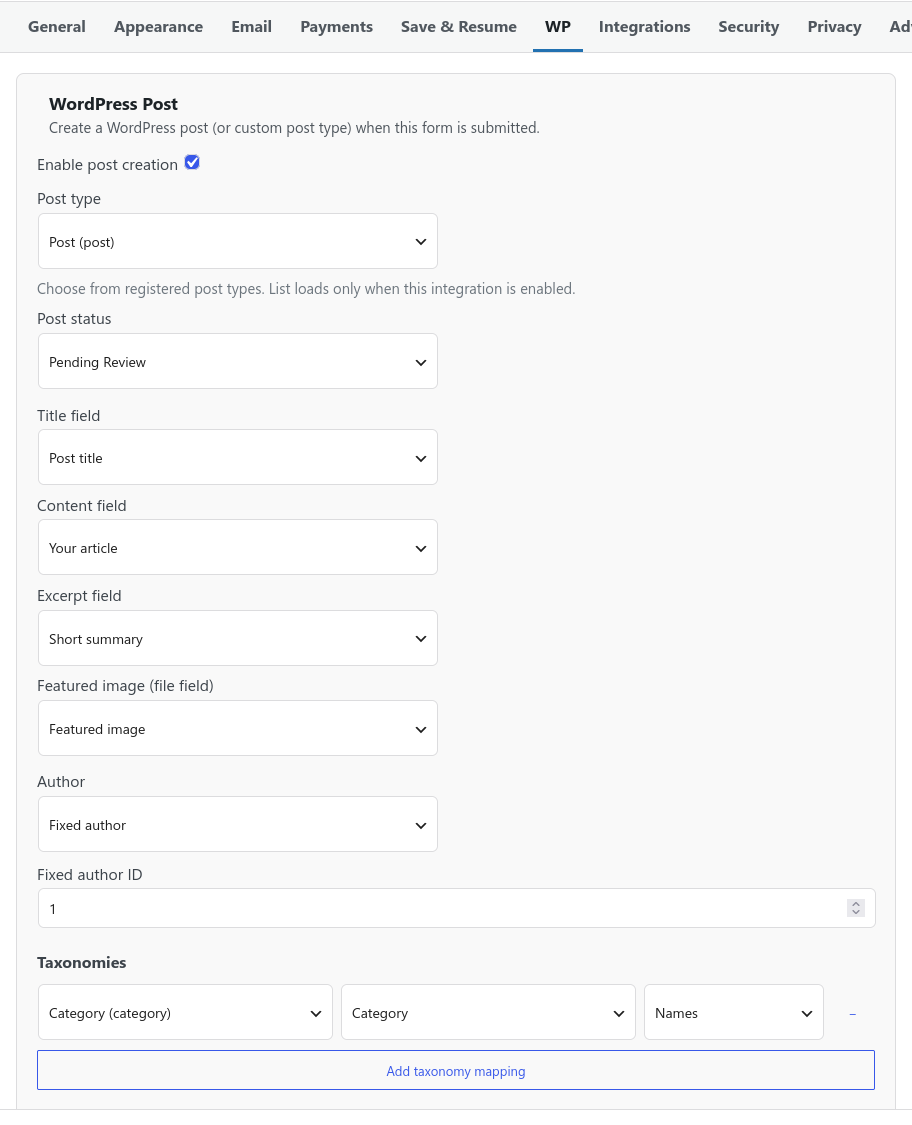
Open Form Settings, go to the WP tab, and find WordPress Post.
Switch on Enable post creation, then set:
- Post type
Post (post)- Post status
Pending review- Title field
- Post title
- Content field
- Your article
- Excerpt field
- Short summary
- Featured image (file field)
- Featured image
Post status is the setting that matters most.
Pending review puts every submission in a queue you approve by
hand. Only choose Publish if you fully trust who is submitting.
Step 3: Set the author
Author decides who owns the created post. Three options:
| Mode | Post author becomes |
|---|---|
| Current user | The logged-in visitor, or nobody if they're not logged in |
| Fixed author | The user ID you enter |
| Anonymous | Nobody |
For a public form open to guests, pick Fixed author and
enter the user ID of an account you keep for submitted content. You can find
the ID by opening that user under Users and reading the
user_id= value in the address bar.
With Current user on a public form, anonymous visitors produce posts with no author, which show up blank in your posts list and can break themes that expect an author.
One thing worth knowing: if you set Post status to
Publish but the author you chose lacks permission to publish
that post type, Formatrica saves the post as pending instead. That's
deliberate. It stops a form from granting more access than the account
behind it actually has.
Step 4: Map the category
Still in the WordPress Post panel, scroll to Taxonomies and click Add taxonomy mapping. Each row takes three values:
- The taxonomy, for example
Categories (category) - The form field supplying the value, here your Category select
- Names or IDs, describing what your field contains
Choose Names, since your select stores readable text like
Tutorials. Use IDs only when the field holds
numeric term IDs.
Names must match your existing categories exactly, including capitalization. Save the form.
Step 5: Put the form on a page
Pick whichever suits you:
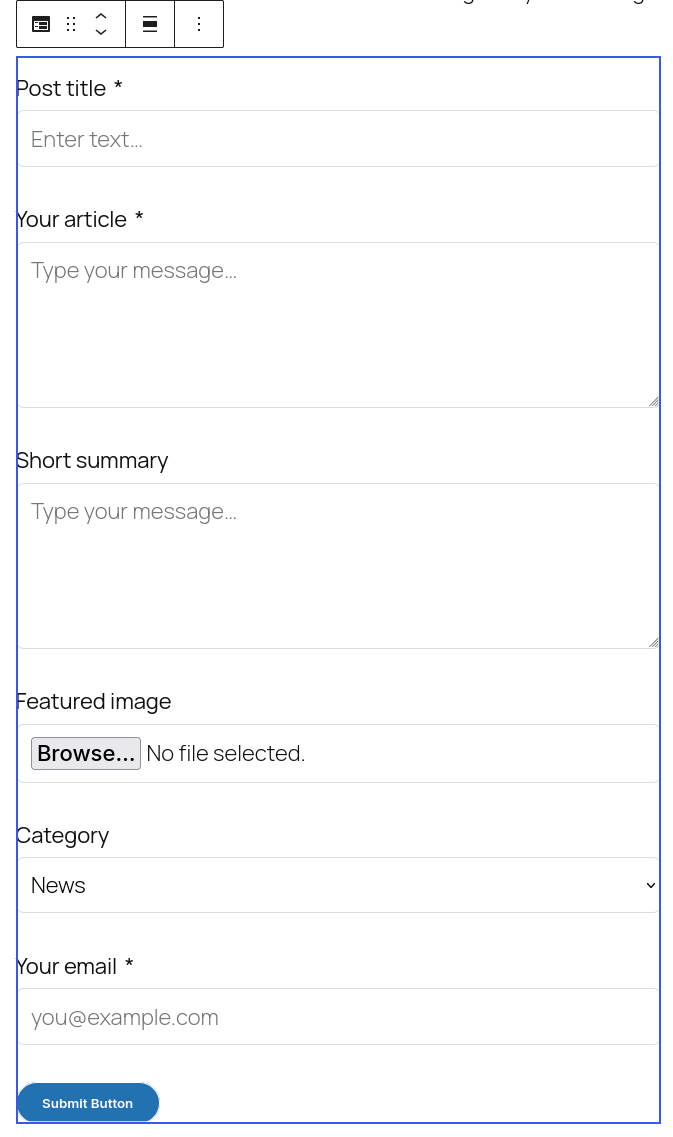
Block editor. Add the Formatrica block to a page and choose your form.
Shortcode. Paste [formatrica id="5"] into a
page, post, or widget, replacing 5 with your form's ID.
Add a short paragraph above the form explaining what you accept and how long review takes. Submitters who know the rules send better material.
Step 6: Guard against spam
A public form that creates content is a spam target. In Form Settings › Security, turn on a CAPTCHA provider. Formatrica supports reCAPTCHA v3, Cloudflare Turnstile, and FriendlyCaptcha, and the honeypot and minimum submission time checks are there too.
Leaving Post status on Pending review is your
real protection. Spam that never publishes is only an inbox problem.
Step 7: Review and publish
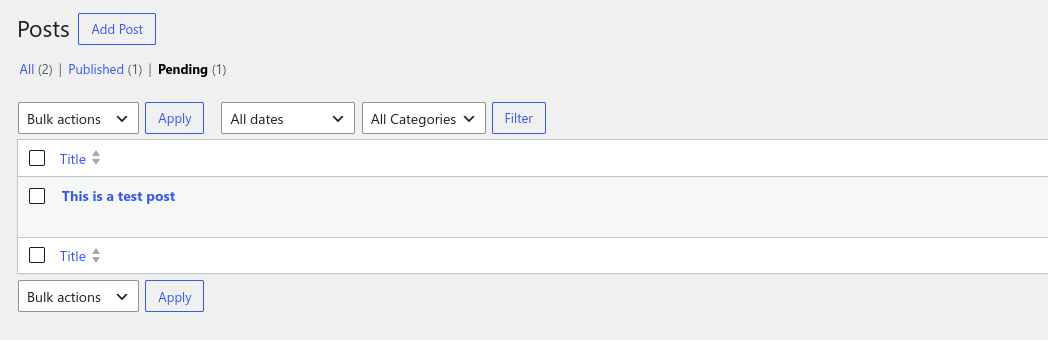
Submitted posts land under Posts › All Posts with a Pending status. Open one, check it, edit as needed, and click Publish.
The original submission is also kept under Formatrica › Submissions, so you keep the submitter's email even if you delete the draft post.
Variations
Accept a custom post type. Any registered post type appears in the Post type dropdown. Choose it and map your fields the same way. Useful for event listings, directory entries, or recipes.
Save extra answers as post meta. In the Post
meta section, add a row with a meta key and the field supplying it.
If Advanced Custom Fields is active, entering an ACF field key such as
field_XXXX stores it in ACF format.
Let contributors own their posts. If submitters have accounts and are logged in, set Author to Current user so each post belongs to its writer.
Troubleshooting
- No post is created.
- Check that Enable post creation is on and that the form was saved after you changed the setting. Then confirm the Title field and Content field dropdowns point at real fields.
- The post is created but empty.
- The mapping dropdowns reference field names. If you renamed a field after mapping it, re-select it in the WP tab.
- The post has no author.
- You're on Current user with visitors who aren't logged in. Switch to Fixed author.
- I chose Publish but posts are still pending.
- The author account can't publish that post type. Give that user a role that can, or keep the review step.
- The featured image is missing.
- Make sure the Featured image (file field) dropdown points at your upload field, and that the field accepts Images. The file is copied into your media library when the post is created, so it must upload successfully first.
- Formatting in the article is gone.
- Content is cleaned with WordPress post rules before saving, which strips anything not allowed in a post. A textarea submits plain text, so paragraph breaks survive but styling does not.
Full guides, hook reference, and REST API docs: Formatrica documentation.